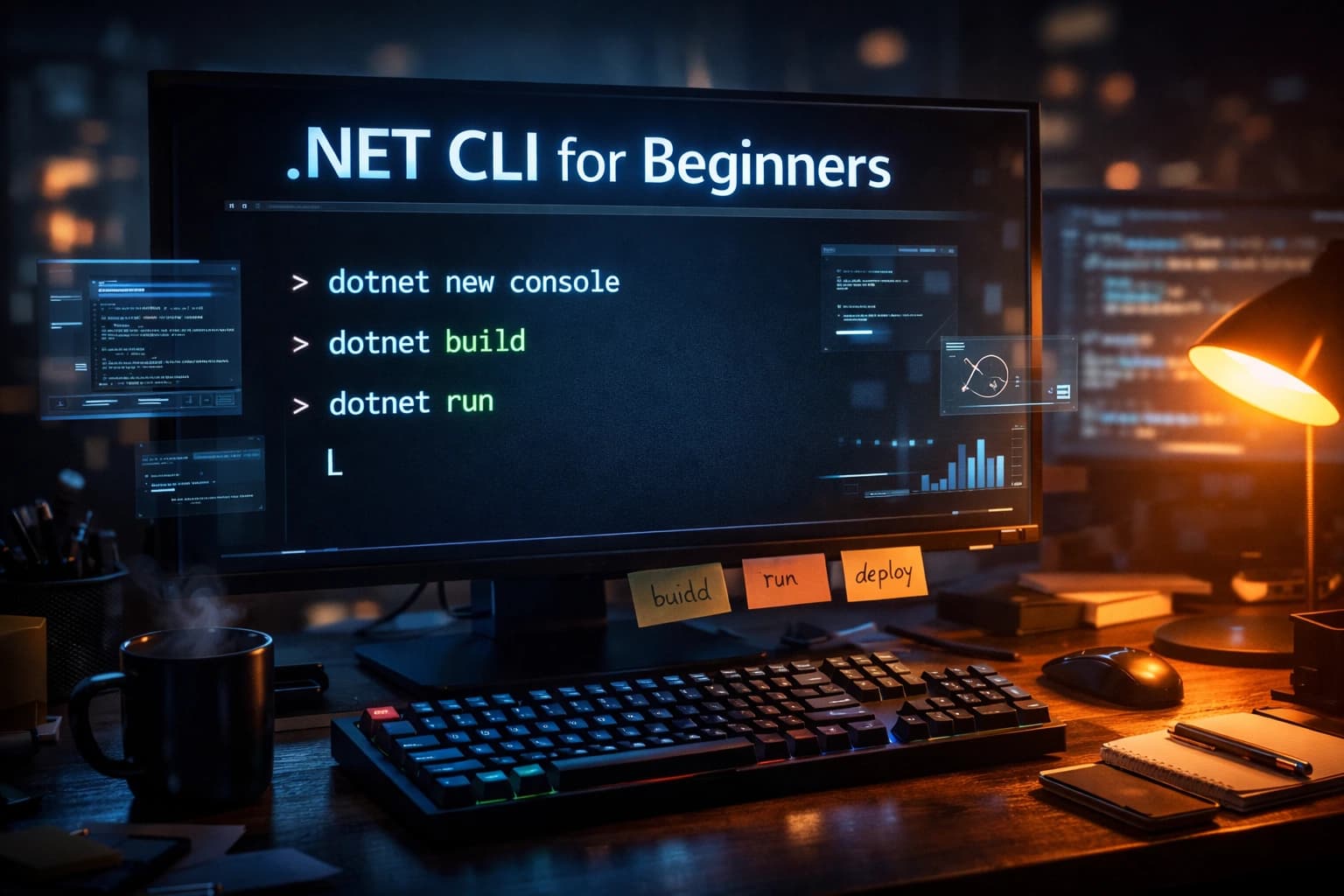
Introduction
Here's a confession: the first six months of my .NET career, I basically lived inside Visual Studio. I'd right-click → Add → New Project, drag-and-drop NuGet packages, and hit the green play button to run everything. I barely touched the terminal.
Then I joined a team that used Linux build servers, and suddenly Visual Studio wasn't an option. The .NET CLI — the dotnet command — became my entire toolkit.
It turned out to be one of the best things that ever happened to my workflow.
In this guide, I'll walk you through everything you need to get productive with the .NET CLI: what it is, how to install and verify it, the essential commands you'll use every single day, and how to build a real Web API project entirely from the terminal. I'll also share the mistakes I see beginners make so you can skip the frustration I went through.
What Is the .NET CLI and Why Should You Care?
The .NET CLI (Command Line Interface) is a cross-platform toolchain that ships as part of the .NET SDK. Every command you run starts with the dotnet driver — it's the single entry point for creating, building, running, testing, and publishing .NET applications.
A few things that make it worth learning properly:
- It's cross-platform. The same commands work on Windows, macOS, and Linux without modification.
- It's what your CI/CD pipeline uses. GitHub Actions, Azure Pipelines, and Jenkins all shell out to
dotnetcommands under the hood. Understanding the CLI means you understand your build pipeline. - It's faster for common tasks. Scaffolding a new project or adding a NuGet package via the CLI is genuinely quicker than navigating IDE menus once you know the commands.
- Visual Studio uses it too. Even if you love VS, it's calling the same CLI commands internally. Knowing this removes the "magic" and gives you full control.
As the Uno Platform cheatsheet puts it well: the CLI enables faster task execution, automation through scripting, and granular control that GUI tools can't always provide.
CLI vs. IDE: When to Use Which
I'm not going to tell you to abandon Visual Studio or Rider. I use them daily. But I now use the CLI for scaffolding, package management, running tests in CI, and publishing. I use the IDE for debugging, refactoring, and anything requiring a visual design surface.
Think of the CLI as the power tool in your belt — you reach for it when it's the right job.
Installing and Verifying the .NET SDK
The .NET CLI comes bundled with the .NET SDK. There's nothing to install separately.
Step 1: Download the SDK
Head to dotnet.microsoft.com/download and grab the latest LTS (Long-Term Support) version. As of writing, that's .NET 8.
Step 2: Verify the installation
Open your terminal (Command Prompt, PowerShell, Bash, zsh — doesn't matter) and run:
dotnet --version
You should see something like 8.0.xxx. If you see an error, your PATH isn't set correctly — reinstall the SDK and let the installer handle the environment variables.
To see every SDK and runtime installed on your machine:
dotnet --list-sdks
dotnet --list-runtimes
I run these commands constantly when debugging environment issues on CI machines. Get comfortable with them.
Step 3: Explore the help system
The CLI has excellent built-in docs:
dotnet --help           # top-level commands
dotnet new --help       # help for a specific command
dotnet build -h         # shorthand works too
Every command supports -h or --help. I'd encourage you to lean on this before reaching for a browser.
The Essential .NET CLI Commands
Let me walk through the commands you'll use on literally every project. I've grouped them by what phase of the development cycle they belong to.
Creating a Project: dotnet new
dotnet new scaffolds a new project from a template. Run this to see every available template:
dotnet new list
The output is long — there are templates for console apps, Web APIs, MVC apps, Blazor, Worker Services, xUnit test projects, and more. Some I use almost daily:
# Console application
dotnet new console -n MyApp -o ./src/MyApp

# ASP.NET Core Web API (minimal hosting)
dotnet new webapi -n MyApi -o ./src/MyApi

# Class library
dotnet new classlib -n MyApp.Domain -o ./src/MyApp.Domain

# xUnit test project
dotnet new xunit -n MyApp.Tests -o ./tests/MyApp.Tests
The -n flag sets the project name (also used as the default namespace). The -o flag sets the output directory. I always specify both explicitly — relying on defaults leads to projects created in unexpected places.
Managing Solutions: dotnet sln
In real projects, you'll have multiple projects in one solution. The solution file (.sln) ties them together.
# Create a new solution
dotnet new sln -n MyApp

# Add projects to the solution
dotnet sln MyApp.sln add ./src/MyApi/MyApi.csproj
dotnet sln MyApp.sln add ./src/MyApp.Domain/MyApp.Domain.csproj
dotnet sln MyApp.sln add ./tests/MyApp.Tests/MyApp.Tests.csproj

# List all projects in the solution
dotnet sln MyApp.sln list
Building: dotnet build
dotnet build                          # builds the project in the current directory
dotnet build ./src/MyApi/MyApi.csproj # builds a specific project
dotnet build -c Release               # release configuration (optimized)
Always build in Release mode before you deploy. The Debug build includes extra metadata and skips certain optimizations. I've seen real production performance differences from forgetting this.
Running: dotnet run
dotnet run                            # runs the project in the current directory
dotnet run --project ./src/MyApi      # runs a specific project
dotnet run --launch-profile https     # uses a specific launch profile
One gotcha I hit early on: if you're at the solution root and run dotnet run, it'll fail because .sln files aren't runnable. Always use --project to be explicit when you're outside the project directory.
Testing: dotnet test
dotnet test                           # runs all tests in the solution
dotnet test --filter "Category=Unit"  # filter by test category
dotnet test --logger "console;verbosity=detailed"
I run dotnet test before every commit. It takes ten seconds and has saved me from countless embarrassing bugs reaching code review.
Managing NuGet Packages: dotnet add package
The dotnet add package command is your NuGet manager from the terminal. According to the official NuGet CLI docs, this is the recommended way to add packages in SDK-style projects.
# Add a package (latest stable version)
dotnet add package Serilog

# Add a specific version
dotnet add package Serilog --version 3.1.1

# Remove a package
dotnet remove package Serilog

# List all packages in a project
dotnet list package

# Find outdated packages
dotnet list package --outdated
dotnet list package --outdated is something I run at the start of every sprint. Keeping dependencies current is a security habit, not just a maintenance chore.
Publishing: dotnet publish
# Publish for Linux x64 as a self-contained single file
dotnet publish -c Release -r linux-x64 --self-contained true -p:PublishSingleFile=true -o ./publish

# Framework-dependent publish (smaller, requires .NET runtime on host)
dotnet publish -c Release -o ./publish
The difference between dotnet build and dotnet publish trips up a lot of beginners. build produces DLLs in bin/. publish produces a deployment-ready output with all runtime dependencies resolved. Always use publish for anything going to a server.
Build a Real Web API from Zero Using Only the CLI
Enough theory. Let's build a complete minimal Web API project structure using nothing but the terminal. I'll do this the same way I'd scaffold a real project.
Step 1: Create the solution structure
mkdir TodoApi && cd TodoApi

dotnet new sln -n TodoApi

dotnet new webapi -n TodoApi.Api -o ./src/TodoApi.Api
dotnet new classlib -n TodoApi.Domain -o ./src/TodoApi.Domain
dotnet new xunit -n TodoApi.Tests -o ./tests/TodoApi.Tests

dotnet sln TodoApi.sln add ./src/TodoApi.Api/TodoApi.Api.csproj
dotnet sln TodoApi.sln add ./src/TodoApi.Domain/TodoApi.Domain.csproj
dotnet sln TodoApi.sln add ./tests/TodoApi.Tests/TodoApi.Tests.csproj
Step 2: Add project references and packages
# Api depends on Domain
dotnet add ./src/TodoApi.Api/TodoApi.Api.csproj reference ./src/TodoApi.Domain/TodoApi.Domain.csproj

# Tests depend on Api
dotnet add ./tests/TodoApi.Tests/TodoApi.Tests.csproj reference ./src/TodoApi.Api/TodoApi.Api.csproj

# Add common packages
dotnet add ./src/TodoApi.Api package Serilog.AspNetCore
dotnet add ./src/TodoApi.Api package Microsoft.EntityFrameworkCore.Sqlite
Step 3: Add a minimal endpoint
Open ./src/TodoApi.Api/Program.cs and replace the content with:
var builder = WebApplication.CreateBuilder(args);
builder.Services.AddEndpointsApiExplorer();
builder.Services.AddSwaggerGen();

var app = builder.Build();

app.UseSwagger();
app.UseSwaggerUI();

var todos = new List<string>();

app.MapGet("/todos", () => todos);
app.MapPost("/todos", (string todo) => {
    todos.Add(todo);
    return Results.Created($"/todos/{todos.Count - 1}", todo);
});

app.Run();
Step 4: Build, run, and test
# Build the entire solution
dotnet build TodoApi.sln

# Run the API
dotnet run --project ./src/TodoApi.Api

# In another terminal, run the tests
dotnet test TodoApi.sln
Navigate to https://localhost:5001/swagger and you'll see your API running. You scaffolded, structured, referenced, packaged, and ran a multi-project .NET solution — entirely from the CLI.
Common Mistakes and Production Best Practices
I've made all of these. You're welcome.
1. Running dotnet run at the wrong level. If you're at the solution root, use dotnet run --project ./path/to/Project. Running bare dotnet run at solution level fails.
2. Publishing in Debug mode. Always pass -c Release to dotnet publish. I've shipped Debug builds to staging and wondered why performance was poor.
3. Ignoring dotnet restore. dotnet build implicitly restores, but in CI pipelines it's best to run dotnet restore explicitly first and cache the NuGet packages. This can cut your build times significantly.
dotnet restore
dotnet build --no-restore   # skips restore since we just did it
dotnet test --no-build       # skips build since we just did it
4. Not pinning tool versions. If you use dotnet tools (like dotnet-ef for EF Core migrations), use a dotnet-tools.json manifest:
dotnet new tool-manifest       # creates .config/dotnet-tools.json
dotnet tool install dotnet-ef  # adds to manifest
dotnet tool restore            # restores on any machine
5. Committing bin/ and obj/ folders. Your .gitignore should exclude these. They're build artifacts, not source code. The CLI regenerates them on dotnet build.
6. Forgetting --self-contained when targeting environments without .NET. If your server doesn't have the .NET runtime pre-installed (common with Docker from scratch images), use --self-contained true. It increases the output size but eliminates the runtime dependency.
Key Takeaways
- The .NET CLI is a cross-platform tool bundled with the .NET SDK — no separate installation needed.
- Every command starts with
dotnet. Usedotnet --helpanddotnet <command> -hto explore without leaving the terminal. dotnet newscaffolds projects from templates; always use-nand-oto be explicit.dotnet buildcompiles;dotnet runcompiles and executes;dotnet publishproduces deployment artifacts — understand the difference.- Use
dotnet slnto manage multi-project solutions the same way you'd structure real production codebases. dotnet add packageanddotnet list package --outdatedare your NuGet manager — run the latter regularly as a security habit.- In CI/CD, split
dotnet restore,dotnet build --no-restore, anddotnet test --no-buildfor better pipeline performance and caching. - Use
dotnet new tool-manifestanddotnet tool restoreto pin CLI tools (likedotnet-ef) per project — it eliminates "works on my machine" issues.
Conclusion
The .NET CLI took me from being dependent on a GUI to having complete, reproducible control over every project I work on. Once it clicks, you'll find yourself scaffolding projects in seconds, catching dependency drift before it becomes a problem, and writing CI pipelines that are actually understandable because you know exactly what every line does.
The best way to learn this is to close the IDE for your next greenfield project and do the whole setup from the terminal. It'll feel slow at first. By the third or fourth project, it'll feel faster than anything else.
If you found this useful, drop a comment below — I'd love to know which commands you end up using most. And if you're ready to take the next step, check out the rest of the backend engineering series on steve-bang.com where I go deeper into ASP.NET Core, clean architecture, and production-grade patterns.
FAQ
Q: Do I need to install the .NET CLI separately?
A: No. The .NET CLI ships with the .NET SDK. Once you install the SDK from dotnet.microsoft.com, the dotnet command is available globally in your terminal. Verify with dotnet --version.
Q: What's the difference between dotnet build and dotnet publish?
A: dotnet build compiles your code into DLLs in the bin/ folder — useful during development. dotnet publish produces a deployment-ready output with all runtime dependencies included. Always use publish when deploying to a server or container.
Q: Can I use the .NET CLI on Linux and macOS?
A: Yes — it's fully cross-platform. The same dotnet commands work identically on Windows, macOS, and Linux. This is one of its biggest advantages over older .NET Framework tooling, which was Windows-only.
Q: How do I add a NuGet package using the .NET CLI?
A: Run dotnet add package <PackageName> from inside your project directory. To add a specific version, use dotnet add package <PackageName> --version <version>. To see outdated packages, run dotnet list package --outdated.
Q: What's the difference between dotnet run and dotnet watch run?
A: dotnet run builds and starts your app once. dotnet watch run does the same but also watches your source files for changes and automatically restarts the app when you save — essentially hot-reload from the terminal. I use dotnet watch run for all local API development.
Related Resources
Once you're comfortable with the .NET CLI, these posts on my website are natural next steps:
- MediatR in .NET: A Complete Guide with Real Examples and Clean Architecture — Learn how to structure the Application layer you just scaffolded with the CLI using the Mediator pattern and clean architecture principles.
- Domain Driven Design in .NET: From Concept to Implementation — Take your multi-project solution structure further by applying DDD concepts like Aggregates, Entities, and Bounded Contexts.
- Mastering Caching in .NET — Once your API is running, this guide covers in-memory and distributed caching patterns to make it production-fast.
- Secure Password Hashing in .NET: Best Practices and Implementation Guide — A practical security guide — a must-read before you ship anything to production.